
Managing documents
Upload documents to your assets, track processing status, and search through document content using keyword or AI-powered semantic search.
Documents are the foundation of AI-powered analysis in OpenSFDR. You can upload PDF or text files to any asset, and the system will process them so you can search through their content or use them in AI conversations.
This guide covers the full document lifecycle: uploading, monitoring processing, searching content, and managing files.
How documents work
When you upload a document to an asset, you choose how it should be processed:
- Storage only — The file is saved but not processed. You can download it later, but it won't be searchable. Think of it as a digital filing cabinet.
- Keyword search — The document is split into smaller passages (chunks) that you can search using keywords. No additional cost.
- AI-powered search — The document is split into chunks and each chunk gets an AI-generated understanding of its meaning. This lets you search by concept, not just exact words. Uses AI credits.
You can change the processing mode at any time. If you upgrade a document from storage-only to searchable, the system will process it automatically.
Uploading a document
Navigate to the asset
Open the asset you want to attach the document to. Documents always belong to a specific asset (company or entity).
Locate the documents section
Scroll down to Dataroom in the asset detail view to see all files currently attached to this asset.
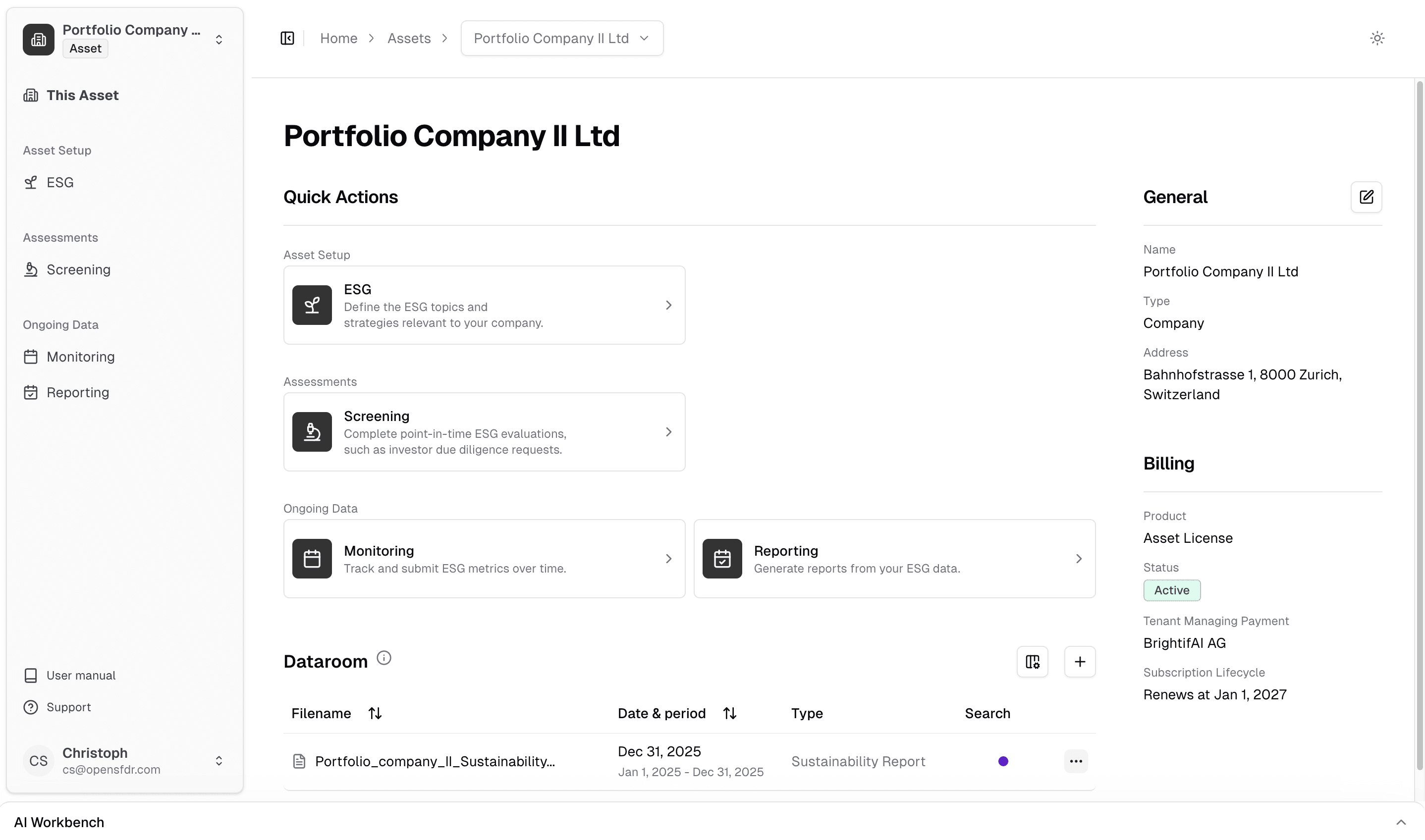
Upload your file
Click the + Button and fill in the required details:
| Field | What to enter |
|---|---|
| File | Select a PDF or plain text file (max 100 MB per file) |
| Document date | The publication or reference date of the document (not today's date) |
| Search mode | Choose how the document should be processed (see above) |
| Reporting period | Optionally specify the time period this document covers (e.g., Jan 1 - Dec 31, 2024 for an annual report) |
| Document type | Optionally label the type (e.g., "Annual Report", "Sustainability Report") |
Password-protected PDFs are not supported. If your PDF requires a password to open, please remove the protection before uploading.
Wait for processing
After uploading, you'll see the document appear in the list. If you chose keyword or AI-powered search, the document will be processed in the background.
The processing status will show:
- Pending — Queued for processing
- Processing — Currently being analyzed and split into searchable chunks
- Success — Ready to search
- Failed — Something went wrong (an error message will explain why)
Processing usually takes a few seconds for small documents and up to a minute for large PDFs. You can continue working while it runs in the background.
Downloading a document
To download the original file, click the download button on any document.
Updating a document
You can update a document's metadata (date, reporting period, document type) at any time without re-uploading the file.
If you change the search mode, the system will automatically:
- Delete all existing searchable chunks
- Re-process the file with the new mode
- Generate new chunks (and embeddings, if AI-powered search is selected)
Changing the search mode triggers reprocessing. The document's chunks won't be available for search until processing completes.
Deleting a document
Deleting a document permanently removes the file and all of its searchable chunks. This action cannot be undone.
Searching document content
Once your documents are processed, you can search through their content. The search works across all documents attached to an asset (or across specific documents you select).
Keyword search
Keyword search finds passages that contain your search terms. It uses an OR logic — a passage matches if it contains any of the words you type. Results are ranked by how many matching terms appear and how relevant they are.
Best for: Finding specific terms, numbers, company names, or exact phrases.
AI-powered semantic search
Semantic search understands the meaning behind your query. Instead of matching exact words, it finds passages that are conceptually related to what you're asking about.
Best for: Questions like "What are the company's carbon reduction targets?" — even if the document uses different words like "greenhouse gas" or "net zero commitment."
Semantic search only works on documents processed with the AI-powered search mode. Documents with keyword-only processing won't appear in semantic search results.
Understanding search results
Each search result includes:
- Content — The matched passage text (may include markdown formatting for tables)
- Page reference — Which page(s) in the original document this passage comes from (e.g., "p. 5" or "pp. 5-7")
- Section heading — The chapter or section heading this passage falls under, if detected
- Source document — The filename, document date, and reporting period of the source file
- Relevance/similarity score — How well the result matches your query (higher is better)
Filtering search results
You can narrow your search by:
- Asset — Search within a specific asset's documents only
- Specific documents — Limit to one or more selected documents
- Excluding results — Hide specific passages you've already reviewed
File limits
| Limit | Value |
|---|---|
| Maximum file size (single document) | 100 MB |
| Maximum total files per asset | 2 GB |
| Supported file types | PDF, TXT |
If you reach the per-asset storage limit, you'll need to delete older documents before uploading new ones.
Frequently asked questions
What's next?
- AI overview — Learn how the AI assistant works
- Managing ESG data — Enter data manually or from extracted values
- Managing reports — Generate reports using your document data
Last updated on