
Managing ESG data
Collect sustainability data from portfolio companies using indicator data, company metrics, and AI-assisted extraction.
How ESG data works
Once your strategies are in place, the next step is collecting the actual sustainability data from your portfolio companies. OpenSFDR uses three types of data entries:
- Indicator data — Values that directly correspond to an indicator definition (e.g. "12,500 tonnes CO2e for Scope 1 emissions").
- Company metric data — General company-level metrics that feed into indicator calculations (e.g. revenue, number of employees, enterprise value).
- Indicator notes — Comments attached to an indicator definition for a specific asset, without a value or time range. Useful for context like "We are currently not measuring this data — next year we'll work with a data provider" or "Our data source for this indicator is XYZ."
Entering data
Portfolio companies are guided through the data they need to provide based on the strategies assigned to them. They don't need any understanding of SFDR — they provide their raw data, and OpenSFDR handles the calculations and aggregations in the background.
Which dates to enter data for
The dates for which data entries are required depend on the context:
-
For monitoring, data is required for the period where the following is true: (i) a financial product is invested in the asset and that financial product has active ESG strategies for that period, or (ii) any ESG strategies assigned directly to the asset. You can always see the resulting date range in the asset's Monitoring section.
-
For screening, data is always required for the date specified in the screening request.
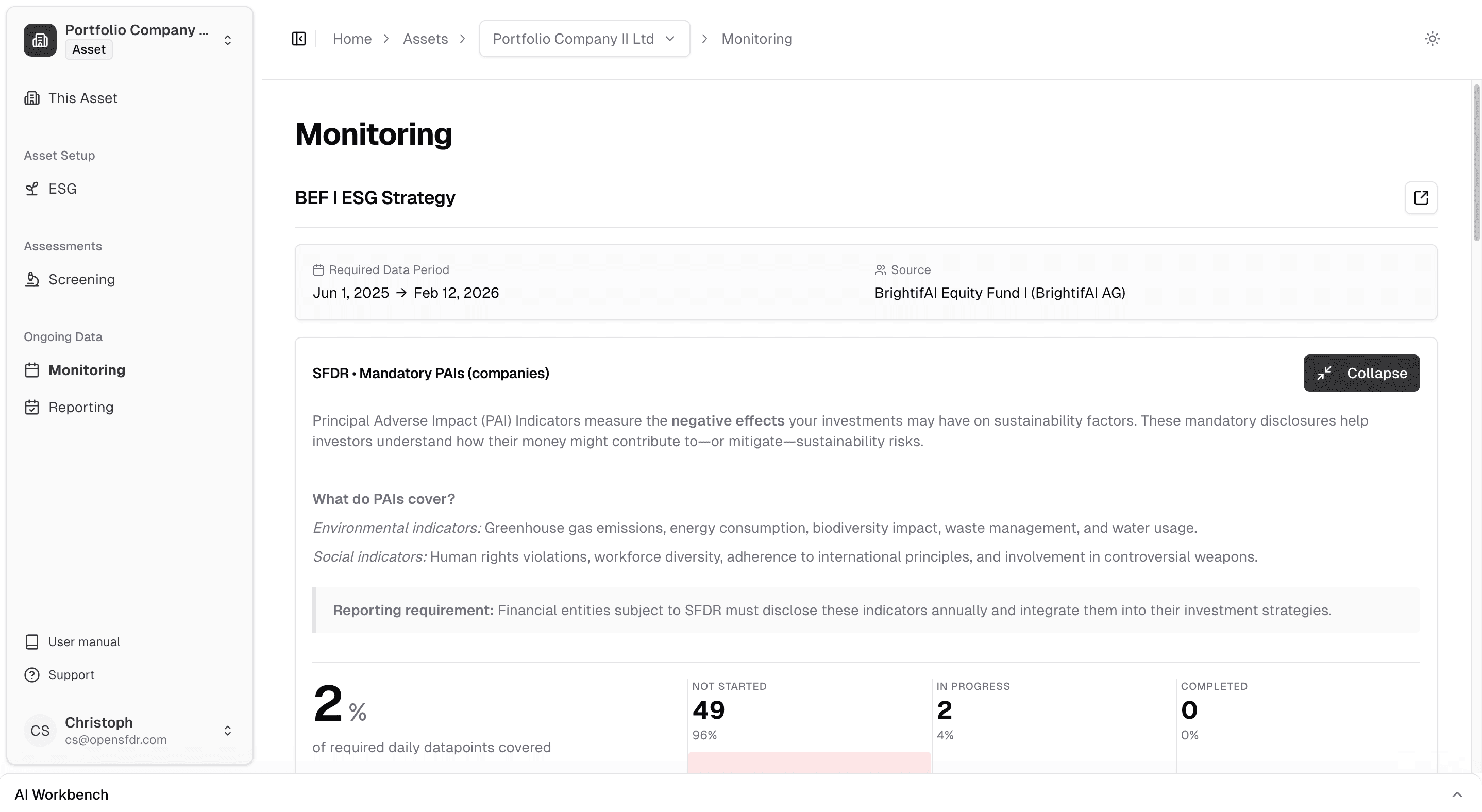
The monitoring section shows the exact timeframe for which each strategy applies. In the example below, the strategy must be applied from Jun 1, 2025 until at least today.
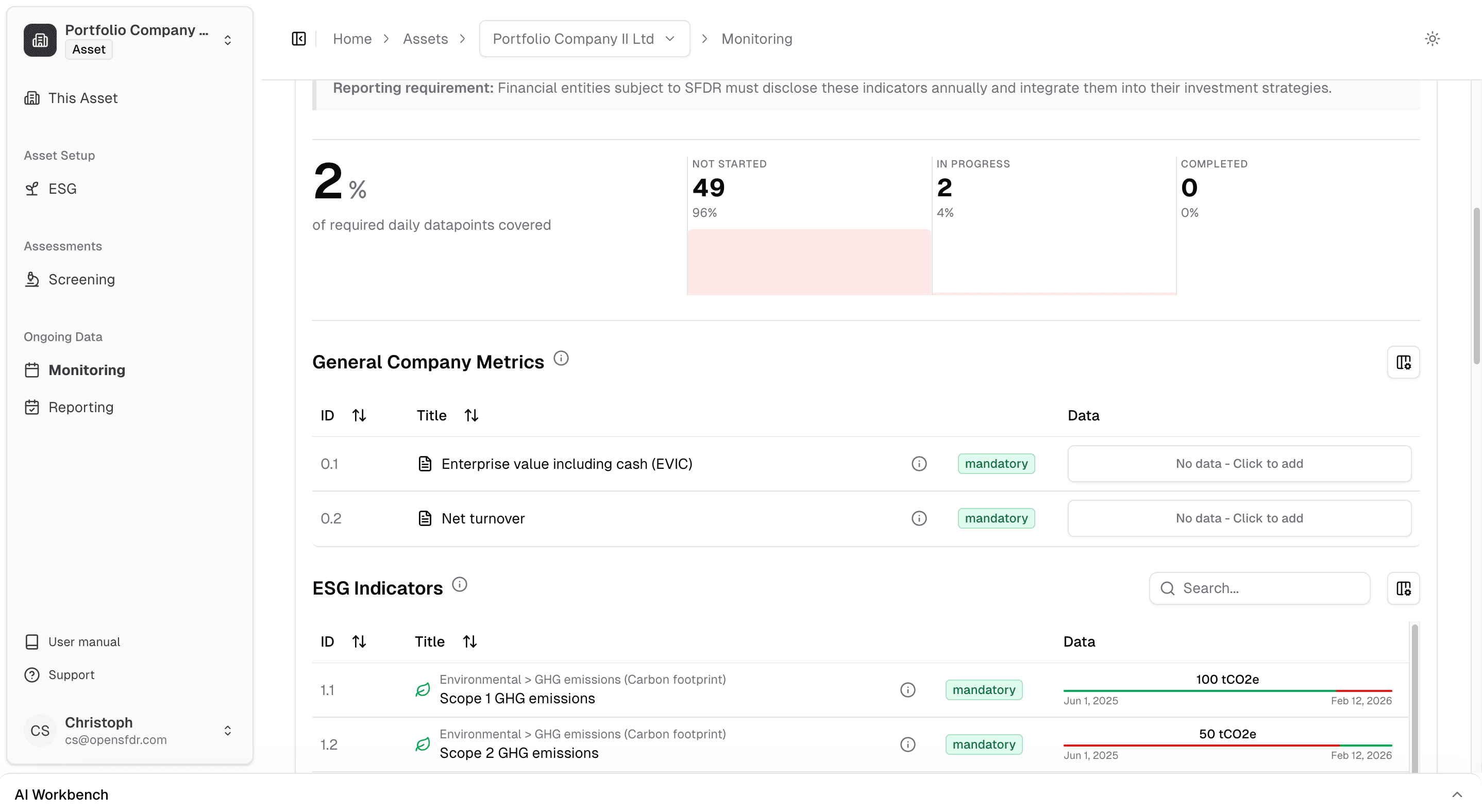
Scrolling down, you can see the actual data status for each indicator. Green highlighting shows periods where data has been provided; red highlighting shows where data is still missing. This gives you an immediate overview of the current reporting state. In the example below, Scope 1 GHG emissions have data for 2025 (green) but are missing for 2026 (red), while Scope 2 GHG emissions have data for 2026 but are missing for 2025.
You can report values without an end date. This is useful for data points that don't change — for example, if you know an asset is not active in the fossil fuel industry, set this once without an end date and it carries forward to every future reporting cycle. No need to revisit it.
Tips for entering data more quickly
Entering ESG data across many indicators and periods can be time-consuming. Here are a few ways to speed things up:
- Navigate with arrow controls — Use your arrow keys to move through the data spreadsheet. This is much faster than clicking into each cell individually.
- Create new rows with arrow keys — If you're in the first row and press the up arrow, a new row is created for the period before it. Same in the other direction. This lets you extend your data range without reaching for the Add Row button.
- Set up timing presets — If your data follows a regular cadence (e.g. quarterly GHG emissions), click the dropdown next to Add Row and select a preset like Quarterly. Now every new row — whether created with the button or arrow keys — automatically aligns to quarterly boundaries (e.g. 01-01-2025 to 31-03-2025), saving you from typing dates manually.
- Bulk upload via CSV — Use the Import CSV button to upload data from external sources in bulk, rather than entering values one by one.
- Use the AI Workbench — For a more flexible approach, open the AI Workbench and describe your data in any unstructured format. Just explain what you want to enter and the AI will create the entries for you. See below for more details.
Looking to export data? The recommended approach is via reports — create a monitoring report, configure the timeframe, and export to CSV. See Exporting data for details.
Using AI to generate data
OpenSFDR includes AI capabilities that can help you generate ESG data without copy-pasting definitions and context into an external tool. The AI agent sees everything about the asset and the indicator, including any notes you've added.
There are two ways to use the AI agent for data entry:
Direct data entry via chat
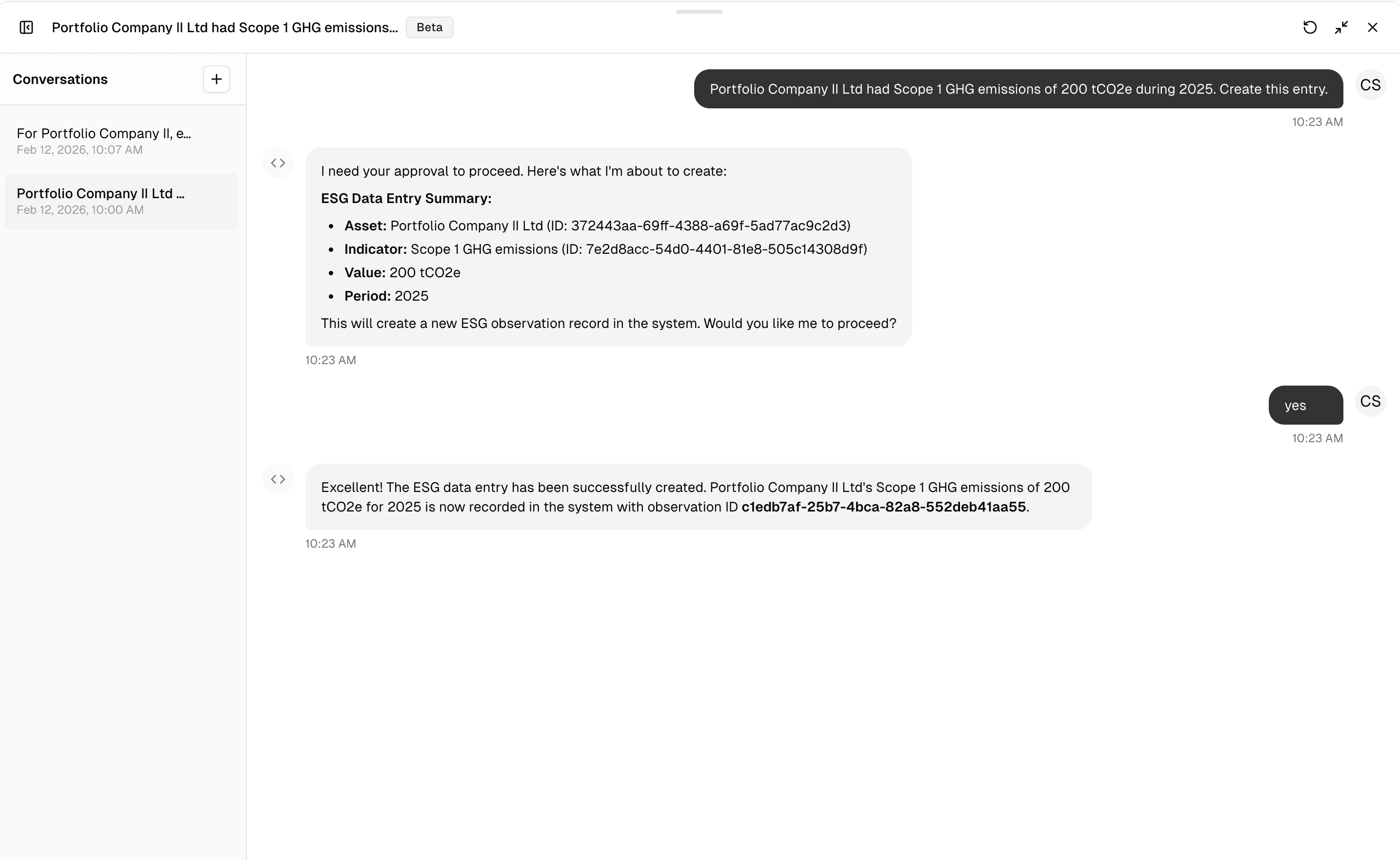
Tell the agent which indicator you want to provide data for and state the value. The agent will create the data entry for you.
Document-based data extraction
Upload documents (PDF or text files) and ask the agent to extract data from them. This agent is more sophisticated — it reads through your documents, identifies relevant data points, and creates justified data entries with references to the source material.
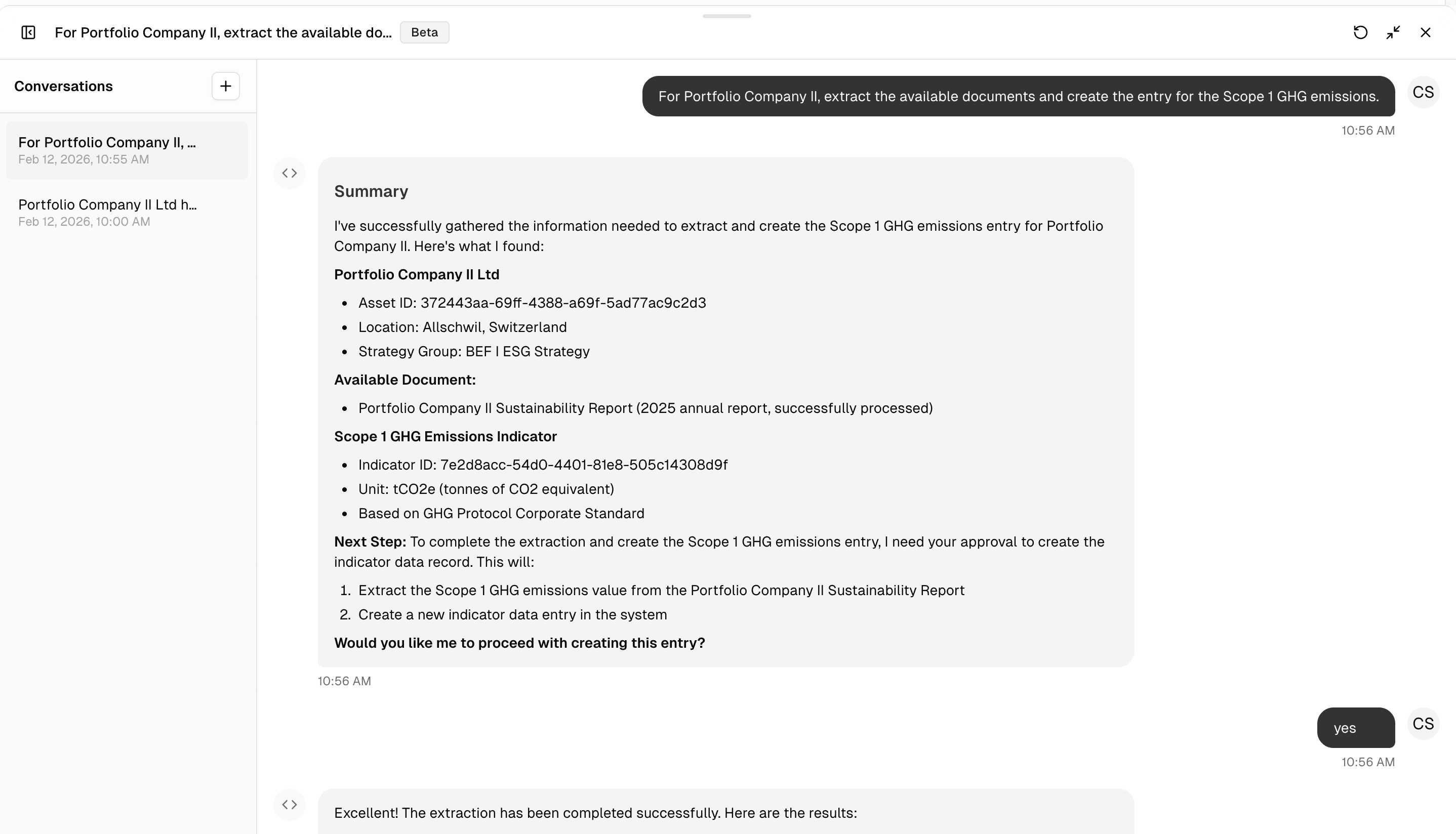
The extraction agent consumes AI credits more quickly than direct chat. See Subscription & plans for information on AI usage limits. For example, this request has consumed 1.99 EUR in AI credits, while the direct data entry chat had consumed 1.06 EUR.
You can also steer the AI by adding indicator notes with analysis you've already done — the agent will take these into account.
Screening a potential investment
When screening a new investment opportunity, OpenSFDR uses all indicator representations marked for screening in your strategy. You can send screening requests to assets before your fund has invested.
Key features:
- Adaptive thresholds — Rules can vary based on other data. For example, you can require certain governance processes only for companies above a specific employee count.
- Point-in-time analysis — Screening evaluations are separate from the ongoing investment status.
See Screening vs. monitoring for a detailed comparison.
Monitoring portfolio holdings
Once an investment is active, monitoring tracks the ongoing reporting status of your portfolio companies. The monitoring period automatically matches the investment period, or the period for which the asset is connected to a strategy group.
You can see a monitoring overview at the fund level, showing which portfolio companies have reported, which are pending, and which have gaps.
See Screening vs. monitoring for a detailed comparison.
What's next?
- Creating reports — Generate disclosure reports from your collected data
- Managing ESG strategies — Adjust which indicators and strategies apply
- Screening vs. monitoring — Understand the difference between pre-investment and ongoing evaluation